How to add a Facebook pixel (the Lead event)?
Where to put the code and how to check that everything works.
The Facebook pixel is a tool for tracking what users do on a site. It lets Facebook know that a user opened the site and took a certain action (for example, submitted an order).
How does it work?
The pixel has two parts:
A unique identifier (Pixel ID) — installed on every page of the site. It lets Facebook record the visit.
A conversion event (Event) — tells Facebook which action the user took: Lead, Purchase, Add to Cart and others.
How to connect the pixel?
Sign in to Ads Manager from the page you run ads from.
Go to “Events Manager → Connect data source → Website”.
Choose “Pixel” → give it a name → click “Create pixel”.
Copy your Pixel ID.
Sign in to EasyWeb → open the landing page you need → the “Integrations” block.
Find Facebook → paste the Pixel ID first → tick the checkbox → “Save”.
Download your landing page → install it on your hosting.
Which event does EasyWeb track?
By default EasyWeb sets the Lead event (the full list of events is linked at the end of the article).
After dozens of tests, we haven't seen a significant difference in ad campaign performance when using different events (Lead, Purchase, CompleteRegistration, etc.). In most cases, the quality of the offer and creatives matters most, not the event name. So we kept Lead as the default — it's universal and fits most goals.
This is the event (Lead) to choose when you launch ads on Facebook.
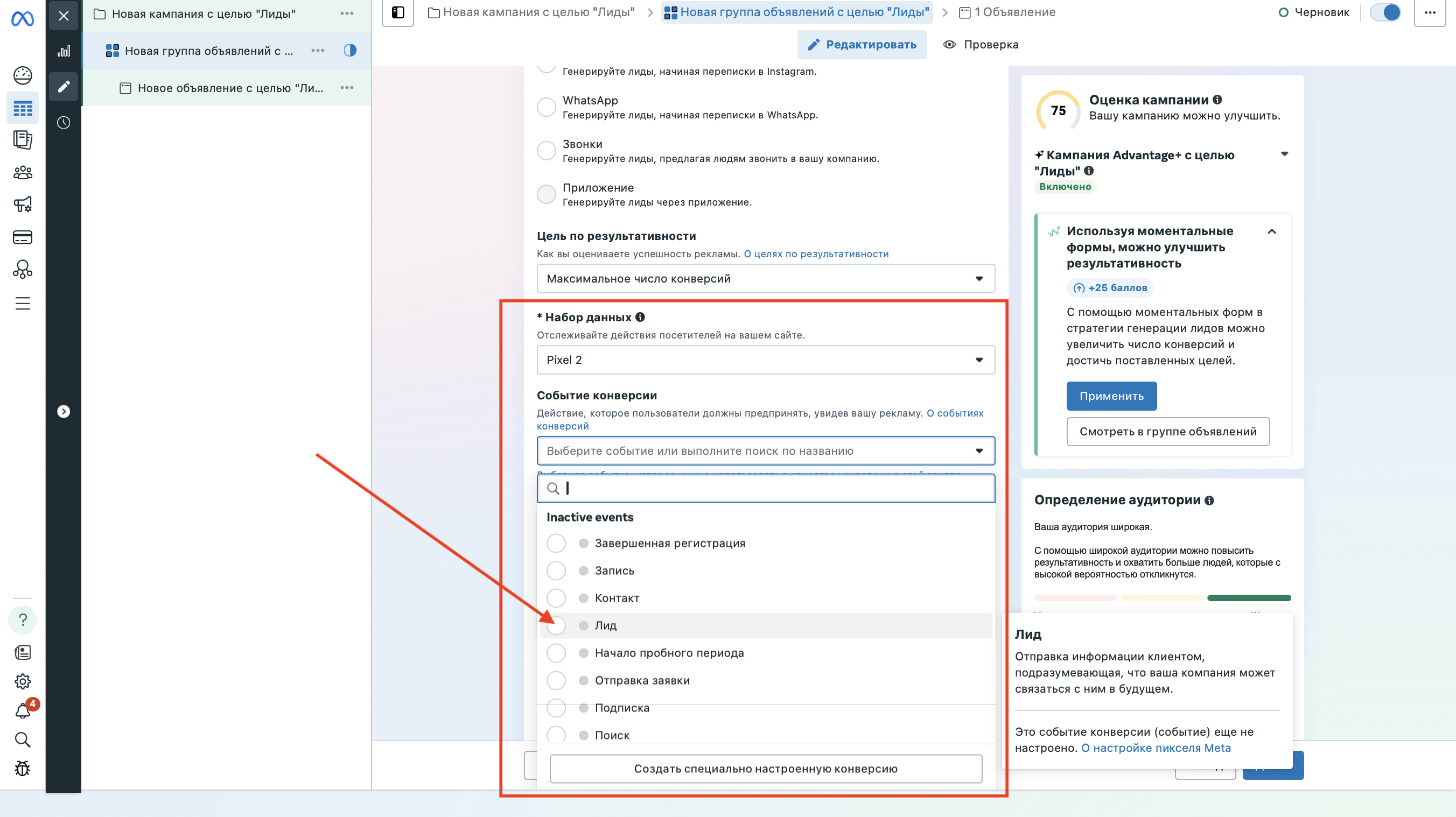
How to change the conversion event?
But you can change the conversion event:
Download your landing page.
Unpack the archive → open the includes folder → the analytics.php file.
At the bottom, find the line with the event
fbq('track', 'Lead');Replace Lead with the event you need from the official list of Meta Pixel standard events (link at the end of the article).
We don't guarantee that changed code works and don't provide support for custom changes.
How to test the integration?
Go to “Events Manager → choose your pixel”.
On the “Test events” tab, paste a link to your site.
Follow the link, open the site and submit an order.
If everything is set up correctly, a recorded Lead event appears in Facebook.
Done ✅
Now you can run ads knowing exactly how many users submit orders on your site.