Forwarding orders to a Telegram bot
How to receive orders in your bot automatically.
☝️ Integrations are one of the easiest ways to set up fast data exchange between your landing page and external services. This section shows how to forward orders from a landing page straight to a Telegram bot.
Step 1: Create a product
Go to “Landing pages → Products”.
Click “Add” and create the product you need.
Once it's created, the system automatically assigns it a unique ID — it shows up in the “Integrations” section when you choose this product in the landing page settings.
Step 2: Activate the Telegram bot
Open “Integrations → Telegram”.
Click “Connect” — you'll be taken to the page of our Telegram bot.
Follow the link and tap Start — the bot activates and you'll see a confirmation message.
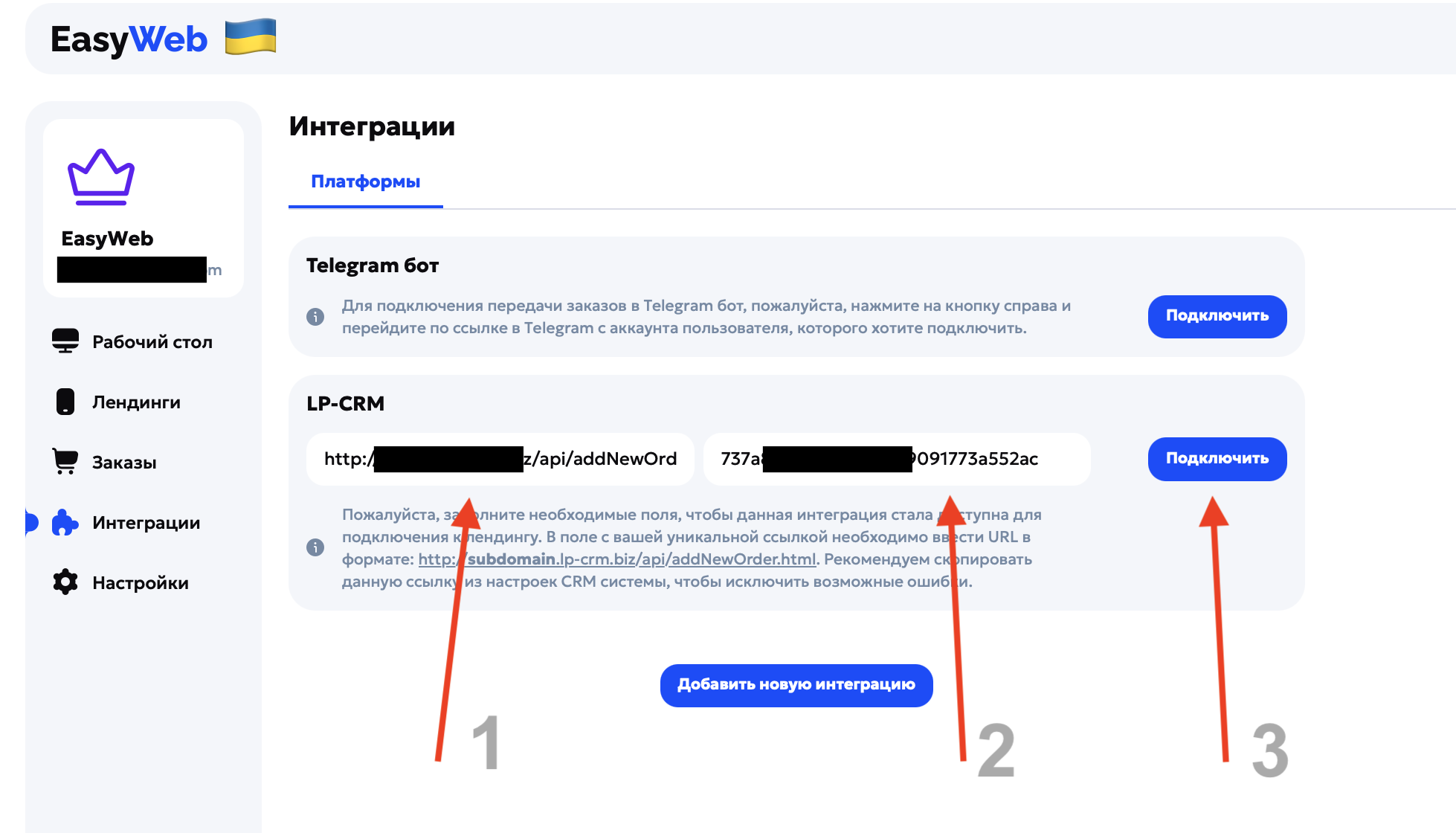
⚠️ If nothing happens after clicking the button, make sure pop-ups are allowed in your browser.
Step 3: Connect the integration to the landing page
Go to “Landing pages” and choose the project you need.
Open the landing page settings.
Scroll to the “Integrations” block and choose Telegram.
Save the changes.
Once the landing page is published, all orders placed through it are sent to the Telegram bot automatically, in a convenient form. This lets you get information about new orders instantly, right in the messenger, without extra systems and notifications.