What to do if events aren't sent?
Checking, debugging and common mistakes — no panic.
Sometimes users run into this: everything is set up according to the guide, but events aren't recorded in the ad account. Here's a step-by-step check:
1. Download and install the site again
If you don't want to dig into technical details, this is the fastest fix:
Check the landing page settings in EasyWeb.
Save the changes again.
Download a new landing page archive.
Delete the old files from your hosting completely.
Upload the new files.
This step often solves the problem if something went wrong during the first upload (for example, a bad connection, an old cache, etc.).
2. Check that the events are active in the site code
Open your site files on the hosting.
Open the
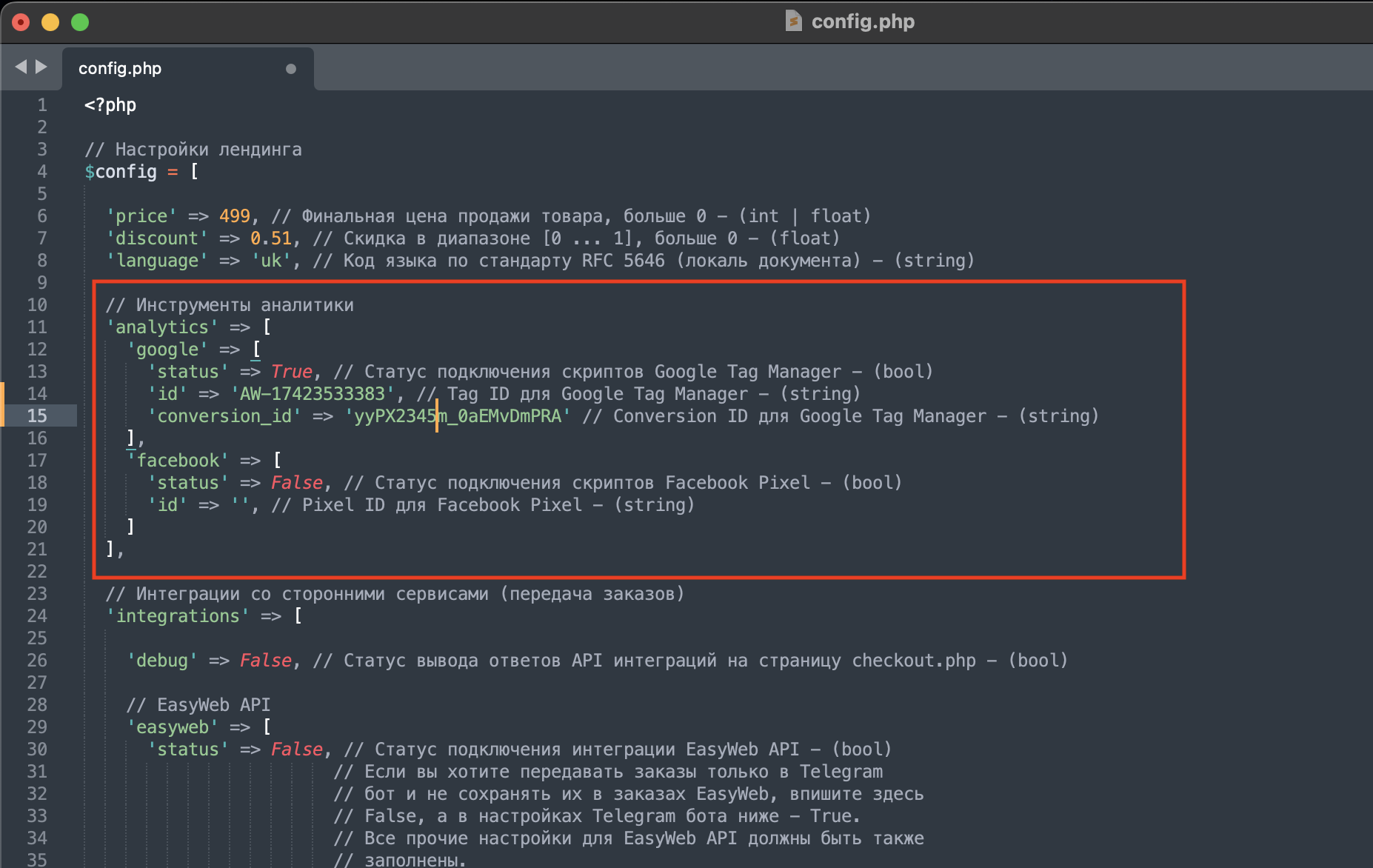
config.phpfile.Find the “// Analytics tools” section.
Check: status: true means the event is on, and the ID (Pixel ID, Conversion ID, Label, etc.) must match what you pasted in EasyWeb.
If any of these fields is false or empty, tracking won't work.
Conversions aren't recorded, but the ad account shows clicks?
For Facebook:
If you haven't changed the site code by hand, EasyWeb sets the Lead event automatically. Make sure this exact event (Lead) is selected in your Facebook Ads campaign. Read more in “How to add a Facebook pixel”.
❗️If you changed the code by hand (for example, replaced the event type), we can't guarantee those edits are correct.
For Google Ads:
- Check in Google Events Manager → the “Event source / Tag testing” section.
- Leave a test order on the site to make sure the event fired.
- If the Conversion ID or Label has mistakes or is missing, the event won't be sent.
✅ Recommendation
Check our guides for connecting events once more — Facebook / Google — most mistakes come from a missed step or a wrongly copied Google / Meta ID.
If the problem is still there after all this, write to support. Include:
- The integration type (Facebook / Google / other).
- How you tested the event.
- A link to your landing page.