Publishing a landing page
How to publish a landing page in EasyWeb.
To publish, you need a domain that's ready — read more about adding and connecting domains in “Adding domains”.
⚠️ Important: hosting is available only on the Premium plan. Once Premium is on, the “Landing pages” section updates automatically and opens all the features needed to publish sites.
Preparing the landing page
Before publishing:
Create a new landing page or use an existing one.
Set up the page design (see “How to work with the builder” ).
Connect all the integrations you need (CRM, Telegram, analytics, etc.).
Publishing the landing page on a domain
Go to “Landing pages”.
Find the landing page you need in the list.
Hover over the landing page name — a “+” button appears on the right.
Click “+” and choose a domain in the drop-down list.

The list shows only domains with the “Ready for a landing page” status that are connected successfully and not used by other published landing pages.
⚠️ One domain can be used for only one landing page at a time. Once you choose a domain, the landing page is published automatically.
Updating a published landing page
If the landing page was published incorrectly or you want to make changes:
Go to the landing page settings or the landing page builder.
Make the changes you need.
Click “Save”.
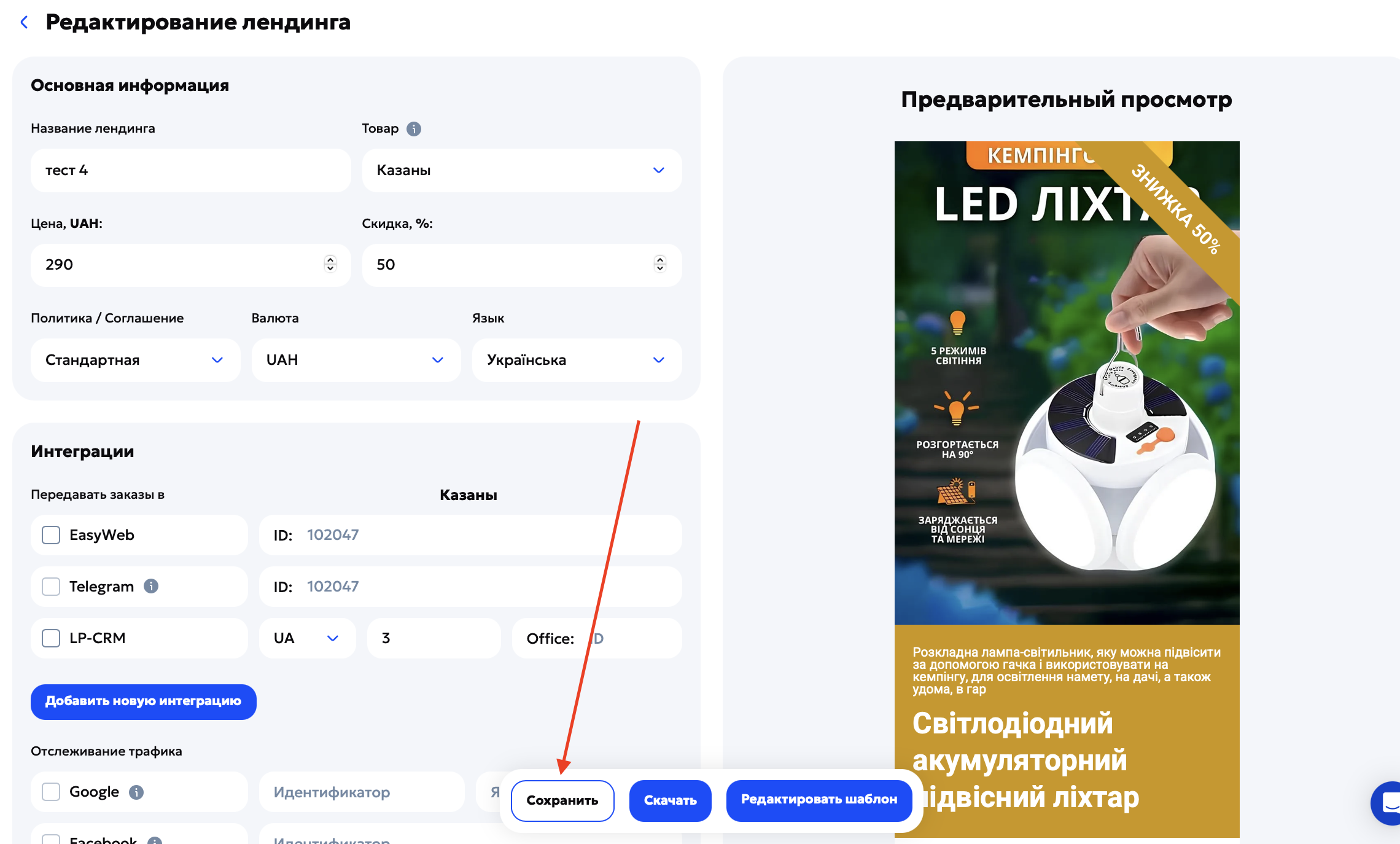
After that, all changes are uploaded automatically to the domain the landing page is linked to.
Managing publication
Each published landing page has extra actions:
Pause the publication.
Unlink the domain from the landing page.
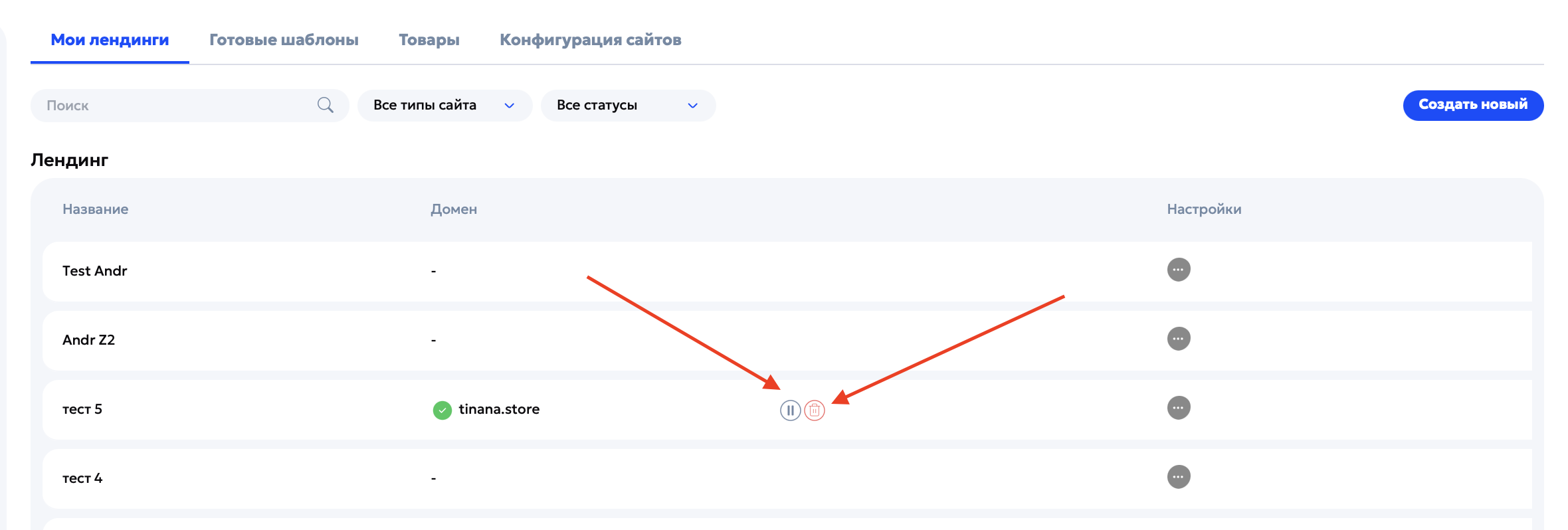
The buttons are to the right of the connected domain.