How to work with the builder
Making changes to the site: simple, fast, no code.
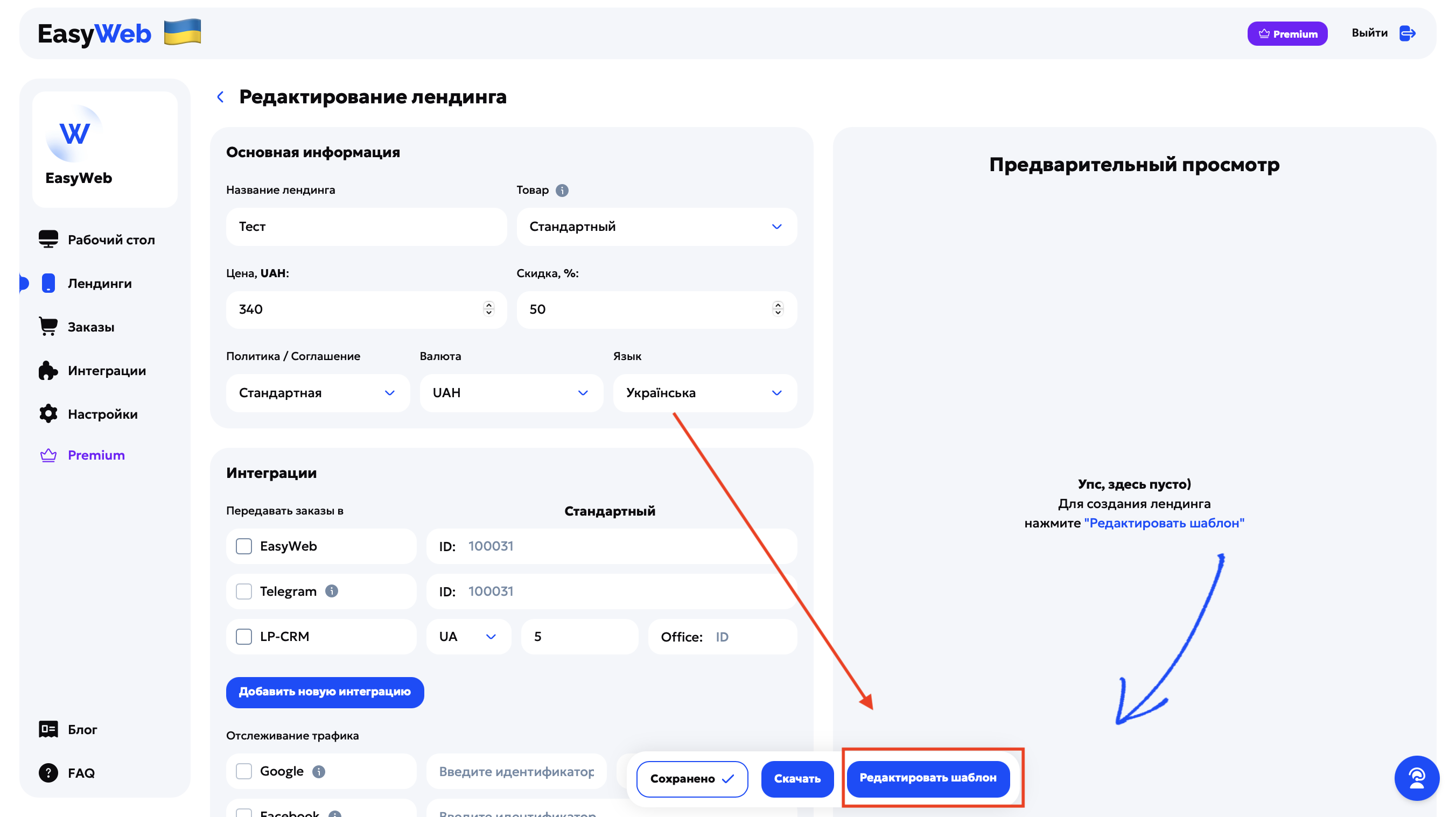
Once you've filled in the main settings of your landing page, click “Edit template” — and you'll land on a blank canvas where creating a landing page starts. If you chose a ready-made template at the start, it loads automatically, already assembled.
Builder structure
EasyWeb builds landing pages from blocks. Each block is a separate section of the site with a specific type of content: headline, form, video, reviews, etc. This lets you:
assemble a site quickly without layout errors;
not think about design — the structure is already thought out;
focus only on content.
Step 1: Adding and managing blocks
- Click “Add block”.
- The “Header” block appears first automatically.
- Hover over a block to see its controls: change design, move, add new, duplicate, delete, change display type.
Right now the editor has no “Undo” function, so be careful when editing. All changes apply at once — before deleting or replacing elements, make sure that's what you want.
Step 2: Building the structure
We recommend adding all the blocks you need first and only then filling them with content. That way you'll assemble the landing page faster and see its full structure right away.
There are 17 block types + design variants for each (1–5).
For the site to collect orders, add at least one form with contact fields.
Read more about each block type in a separate article.
Step 3: Filling with content
Texts
Hover over a text element → place the cursor → edit. A panel appears at the bottom: color, size, bold, alignment, reset styles, step back/forward.
If you have trouble pasting / formatting text
Avoid hidden/non-standard characters. Three ways to get rid of them:
- Paste the text into Notepad first — this removes extra formatting automatically. Then copy it and paste it into EasyWeb.
- Paste the text into Google Docs → click “Clear formatting” (Ctrl + \ or from the menu) → copy the result into the editor.
- Try typing the text by hand.
If the text can't be edited, click “Done”, then open the builder again.
Images and videos
- Click the image or play icon in the block.
- Upload a file from your computer: photos — jpg, jpeg, png up to 2 MB; videos — mp4 up to 10 MB.
Extra elements in blocks
Some blocks (lists, specifications, descriptions…) have inner controls: hover over the row you need and the add, move and delete buttons appear.
Step 4: General site styles
Once the blocks are filled, it's time to set up the overall look of the landing page.
Font — choose to your taste; all fonts are supported by most browsers, which also helps the landing page load faster.
Accent color — sets a single style for the landing page and draws attention to key elements. Pick a color from the palette and it applies across the whole landing page.
All done!
The landing page is assembled. All that's left is to download and publish it.
- How to create a multi-product store — separate article.
- Tips for raising conversion — separate article.